
Journal on iPhone
How to Journal on Your iPhone: 3 Simple Ways to Start Today

The short answer
To journal on your iPhone, pick one place and write one line a day at a time you already stop, like when you plug the phone in at night. A plain note works, so does a built-in journal app, and so does a small-steps journal. Keep it that small for a week, then decide.
In 30 seconds
- A pinned note is the fastest start, with nothing to set up.
- A journal app adds dates, photos and a question when you’re stuck.
- A small-steps journal gives you something to write about first.
- Put it on your Home Screen or Lock Screen so you see it.
- Keep a backup, because phones get lost.
Your iPhone already has two places where a journal could live. You’ve used one of them, once, to save a Wi-Fi password.
The other might still be sitting in a folder called Extras.
We make a third kind, so we’re not neutral here. A plain note works just as well, and we’ll be fair to all three.

Reading XP0 XP
Three ways to journal on your iPhone
There are three sensible ways to keep a journal on a phone. Each one takes a few minutes to start.
- A plain note in your iPhone’s notes app.
- A built-in journal app, which recent versions of iOS include.
- A small-steps journal, where you do one small thing and write a line about it.
Each one also leaves something out. We’ll get to that.
The same habit underneath
The method underneath is the same for all three. It’s the one in how to start journaling: one true line, tied to something you do every day anyway.
That short, phone-sized habit has a name. People call it micro journaling, and a phone suits it, since it’s usually in your hand when the day is done.
So the real question is where the line goes. On paper, maybe.
Paper is still a good option. But some nights the notebook is in the other room, under a library book and yesterday’s socks, while the phone is right here, its charger cable stretched as far as it goes.
Compare them in a minute
Here’s the short version. The times are our rough guesses for a first entry, counted from opening the app.
| Way | Setup time | Good at | Lacks |
|---|---|---|---|
| A plain note | About 1 minute | Speed, nothing to learn | Dates, faces, any reason to write |
| A built-in journal app | About 3 minutes | Photos, prompts, a calendar of entries | Daily goals or small steps |
| Yumemira, a small-steps journal | About 3 minutes | A step, then a line about it | iPhone only, one phone at a time |
None of the three is right for everyone. Pick the one you’ll open when you’re tired.
And you probably know which one that is already.
The sections below show how each one works. Reading them takes about as long as boiling water for tea, which is longer than any of the setups.
A plain note, the fastest start
A single note is the smallest journal there is. No account, no setup, no new app.
If you’ve ever typed a shopping list on your phone, you already know how.
How to set it up
Open your notes app and make a new note. Call it something plain, like “Journal” or the year.
Then add today’s line at the top, with the date first. New lines go on top, so the newest day is the first thing you see.
- “2 Oct. Bus was late. Read on the platform.”
- “3 Oct. Long shift. Rice, then bed.”
- “4 Oct. Fixed the drawer that sticks. Okay day.”
The date matters more than it looks. A year from now, “Fixed the drawer” means nothing without it.
What a plain note leaves out
A note holds words well. It doesn’t give you a reason to write them.
A plain note has none of these:
- a question waiting when your mind goes blank
- a way to mark how the day felt
- a calendar to jump back to one date
- anything that reminds you to write
After a few months, one long note turns into a very long scroll. That’s fine until you want to find a single Tuesday in March.
The note just waits, politely, between a recipe you’ll never cook and a photo of a parking spot from 2023.
Still, for a first week, it’s hard to beat. One note for one week is a fair test of whether phone journaling suits you at all.
A built-in journal app
Recent versions of iOS include a journal app made for this. It’s a real step up from a note.
Never opened it? Swipe left past your last Home Screen page to the App Library and search “journal”.
According to Apple’s own help pages, it can hold photos, audio recordings and drawings. It offers suggestions and prompts to write about.
It can also be locked with Face ID or your passcode. Old entries can be found by date on a calendar.
How to set it up
Open it and follow the first screens. It asks whether to turn on writing suggestions (either answer is fine).
Then start a new entry. Write the same kind of line you’d put in a note: what happened, plus a word for how it felt.
- “Rain all day. Found the other sock.”
- “Read on the bus for once. Good chapter.”
What it leaves out
The built-in journal is made for writing about your day. But it isn’t built around a goal.
So on a day when nothing happened, the page can stay blank. Suggestions help, but a suggestion is still a question about your day, and some days give it very little to work with.
To be fair, that’s a design choice. If you mostly want a tidy place for lines and photos, a built-in journal does the job, and it costs nothing extra.
A small-steps journal
The third way starts one step earlier. Instead of waiting for the day to give you something, do one small thing first, then write a line about it.
Here’s why that helps. Most of the lines worth keeping are about something you did, so this kind of journal starts with the doing.
Yumemira, the small-steps journal for iPhone, works like this.
You pick something you want, from 26 ready-made goals or one of your own, and each day brings a step small enough for today.
Pick a goal.
Reading, drinking more water, saving, walking, or one you name yourself.
Do today’s step.
It’s small on purpose: 10 pages, or 2 on a busy day.
Tap Mark done.
Mira, the app’s star, cheers: “Nice. That counts.”
Say how it went.
Tap it, and the app asks “How did it go?” while the answer is still fresh.
Pick a face.
Great, Okay, So-so, Worried or Hard. Then stop.
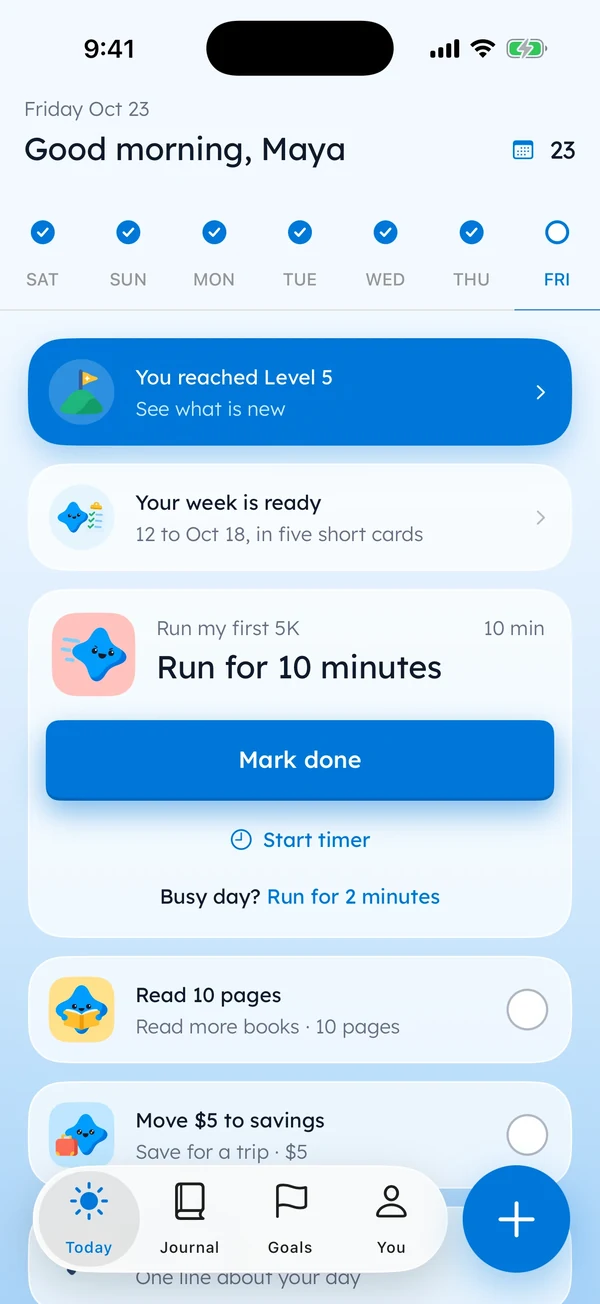
Can a step really fill a page? Most nights, yes. It’s hard to have nothing to say about something you did ten minutes ago.
You don’t need a goal to use it, though.
Open the Journal tab any time and write a line about your day. Add a face and up to 6 photos, or say the line out loud and let the iPhone type it.
Our limits, plainly
Yumemira is iPhone only, with iOS 18 or later. Your journal lives on one phone and doesn’t move between devices by itself (more on keeping a copy below).
The free version keeps one goal at a time.
If you want a journal on several devices, a built-in journal or a plain note may suit you better. That’s a fair reason to pick one of them.
Same day, three ways
Say you read 10 pages on the bus and it rained on the way home. Here’s how that day might look in each.
| Way | What you’d write | What else you’d add |
|---|---|---|
| A plain note | “5 Oct. Read 10 pages on the bus. Rain.” | Nothing, just the date |
| A built-in journal app | “Rain on the way home. Good chapter, though.” | A photo of the wet street |
| Yumemira | “Read 10 pages. The book finally got good.” | The Okay face, after Mark done |
All three lines are fine. Only in the last one did the reading happen because something asked for it.
Write the line within a minute of finishing. By morning, “good chapter” has turned into “some chapter”.
Keep your journal where you look
A journal you have to hunt for is a journal you skip. So put it where you look.
On your Home Screen
Not every journal app has a widget, but many do. Apple’s guide to adding widgets (opens in a new tab) shows the steps.
- Touch and hold an empty spot until the apps jiggle.
- Tap Edit, then Add Widget.
- Pick the app, choose a size, and tap Done.
For a plain note, move your notes app to the dock (it’s one tap from home there).
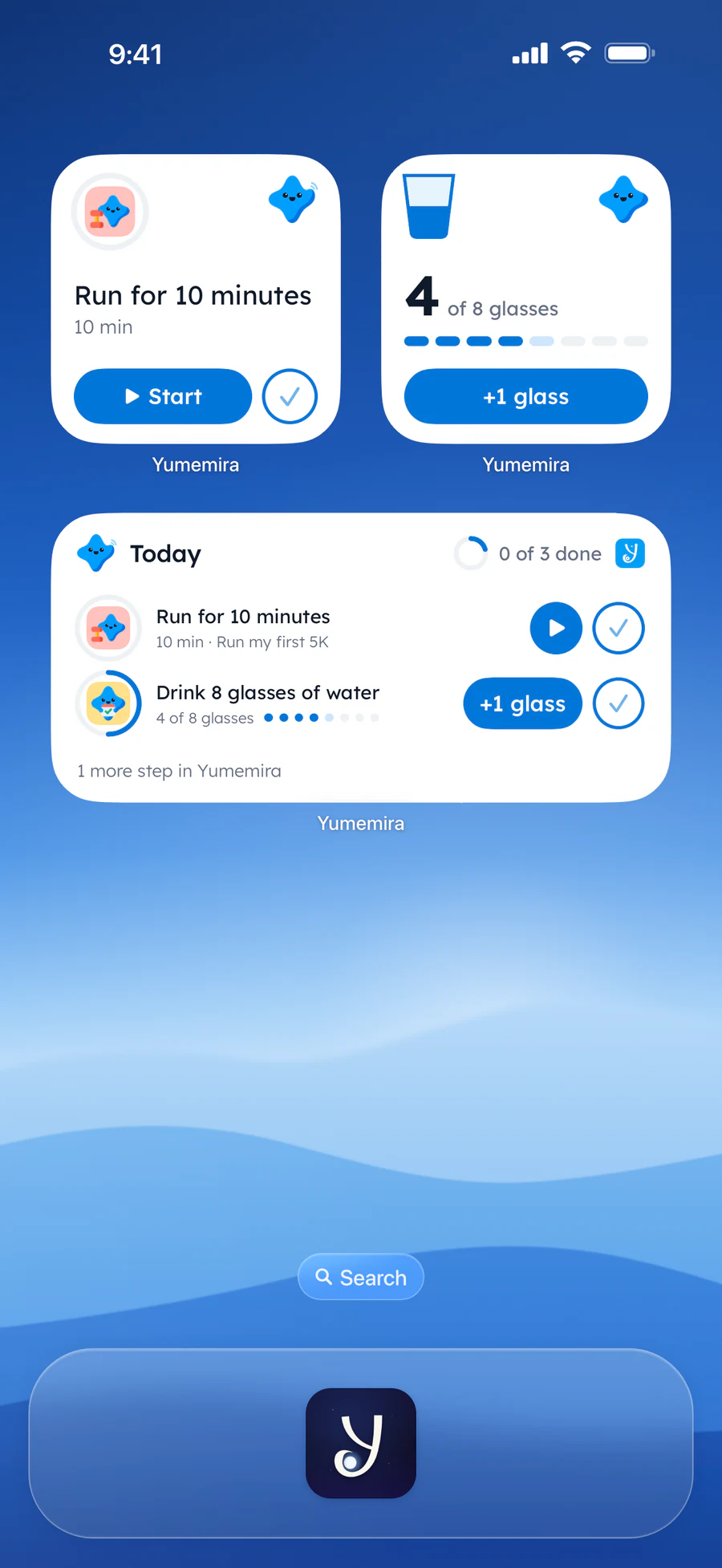
In Yumemira, the small and medium widgets show today’s step with Start, +1 glass or a tick, and they’re free. Choosing and placing one is covered in journal widget for iPhone.
On your Lock Screen
The Lock Screen is the first thing your phone shows you. Touch and hold it, tap Customize, then add a widget from the list.
When you tap Start on a step in Yumemira, the step stays on the Lock Screen and in the Dynamic Island, on iPhones that have one. You can tap Done without opening the app.
If you’d like that on your own phone,  try it in Yumemira.
Worst case, you add nothing and leave the note pinned. That still beats a journal in a folder called Extras.
Keep it safe and private
A phone journal needs two things a drawer doesn’t: a lock and a copy.
The lock comes first. Your iPhone’s passcode already covers everything on it, so keep one on and keep it to yourself.
- A single note can be locked with your passcode.
- The built-in journal app can be locked with Face ID or a passcode.
- Yumemira has an app lock, with a passcode or Face ID, in Pro.
In Yumemira, your journal, notes, photos and voice notes are stored on your iPhone. They aren’t uploaded to us, and there’s no account to make.
One switch, in Settings › Privacy and lock, hides the words in notifications and widgets. The details are on our privacy page.
Keep a copy
Then the copy. A lost phone shouldn’t take your lines with it.
Your iPhone’s iCloud Backup, when it’s on, includes the Yumemira journal. You can also save a file you keep yourself, in Settings › Backup.
Each option is explained step by step in back up a journal on iPhone. The help page covers moving to a new iPhone.
And if the worry is a person rather than a lost phone, keeping a journal private goes through the fixes.
Which way to journal on iPhone fits you?
Pick by what you want from the line. Here’s a quick match.
| If you want… | Try… |
|---|---|
| Just words, nothing to learn | A pinned note: “4 Oct. Okay day.” |
| Photos of the day | A built-in journal app, with one photo |
| A reason to write | Yumemira: one small step, then one line |
| Privacy with no account | A locked note, or Yumemira |
| It on your Lock Screen | A Lock Screen widget, or a step in Yumemira |
Mixing is allowed.
A pinned note for stray thoughts and a journal app for the daily line get along fine, like a fridge list and a wall calendar that have shared a kitchen for years.
As far as we can tell, the tool matters less than the time you pick. And you’ll know which one you open by Friday.
Before you put the phone down
Ticks stay in this browser. Nothing is sent.
If you want to read more first, the journal page shows how ours works. The iPhone fact sheet lists what’s free.
Tonight, open the one you picked and write one line with the date.
Then pin it, the way you once pinned that Wi-Fi password.
Questions people ask
What is the best way to journal on an iPhone?
The best way is the one you’ll open on a tired night. A pinned note is fastest. A built-in journal app adds photos and prompts, and a small-steps journal gives you something to write about first. Try one for a week.
Is there a journal app built into the iPhone?
Yes. Recent versions of iOS include a journal app. It can hold photos and audio, offers things to write about, and can be locked with Face ID or your passcode. Check the App Library if it isn’t on your Home Screen.
Can I lock my journal on iPhone?
Yes. Your iPhone’s passcode protects everything on it. Notes can be locked one by one, the built-in journal app can be locked, and Yumemira has an app lock with a passcode or Face ID as part of Pro.
Should I journal in a notes app or a journal app?
Start in a notes app if you only want words and no setup. Move to a journal app when you want dates, faces, photos or a question waiting when your mind goes blank.
Do I need an account to journal on my iPhone?
No. A note and the built-in journal app work without a new account. Yumemira has no account at all, and your journal stays on your iPhone, so keep a backup in case the phone is lost.
Sources
TopicJournal apps
You earned the Pocket Journal badge
You read the whole guide. Now pick one way and write one line tonight.
0 XP

Yumemira is an iPhone app (iOS 18 or later).
More about the daily journalYumemira is free to start. iPhone, iOS 18 or later.