
Private journal app
Private journal app: what ‘private’ should mean before you write
The short answer
A private journal app keeps your words on your phone or encrypted, asks for no account, shows no ads, hides text from Lock Screen previews and lets you lock it. Check all five before you write anything real. Then test them with a dull line, like “Bought bananas. One was already brown.”
In 30 seconds
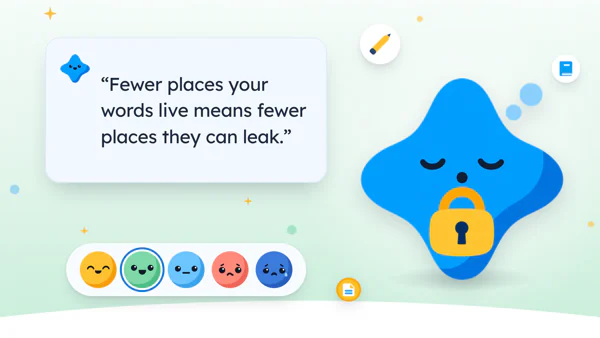
- Fewer places your words live means fewer places they can leak.
- Your iPhone can lock a downloaded journal app for free.
- Hide notification previews before you write a single secret.
- One backup is enough, kept somewhere only you open.
Say your sister knows your phone’s passcode. She learned it on a long car ride, watching over your shoulder, and never forgot.
That’s leak number one. Leak number two is the Lock Screen, which shows a reminder’s first words to anyone nearby.
We make an iPhone journal, so we’re biased. The six questions work on any app.

Reading XP0 XP
What “private” should mean in a journal app
Private sounds like one feature.
It’s really a short list of places your words can end up, and of the people who could look in each of them on an ordinary weekday without you ever finding out.
Picture one line you’d never read aloud. Once it’s typed, it can sit in several places at the same time:
- A company’s server, if the app keeps your journal in an online account
- An ad network’s records, if the app shows ads based on what you do
- The Lock Screen, if a reminder or widget quotes your words
- A backup file, in whatever folder it landed in
- Anyone’s hands, if the phone is open on the sofa
Count the places your words live before you write.
Some answers are on the app’s App Store page. Apple’s guide to privacy information on the App Store (opens in a new tab) explains the App Privacy section.
There, an app lists the data it may collect and whether it’s used to track you. But the developer fills it in, so read it as a first answer.
The rest you check yourself, in the app. If you’re new to all this, start with how to journal on your iPhone, then come back.
The private journal app checklist
Take these six questions to any app, ours included. Each takes a minute or two.
| Check | Why it matters | Yumemira |
|---|---|---|
| Account needed? | Fewer places your words live | No account |
| Where your text lives | A company’s server, or only your phone | On your iPhone, not uploaded to us |
| Ads or tracking | Ads can follow what you do | No ads, no cross-app tracking |
| Lock Screen previews | Anyone nearby can glance at your phone | Hide text switch, free |
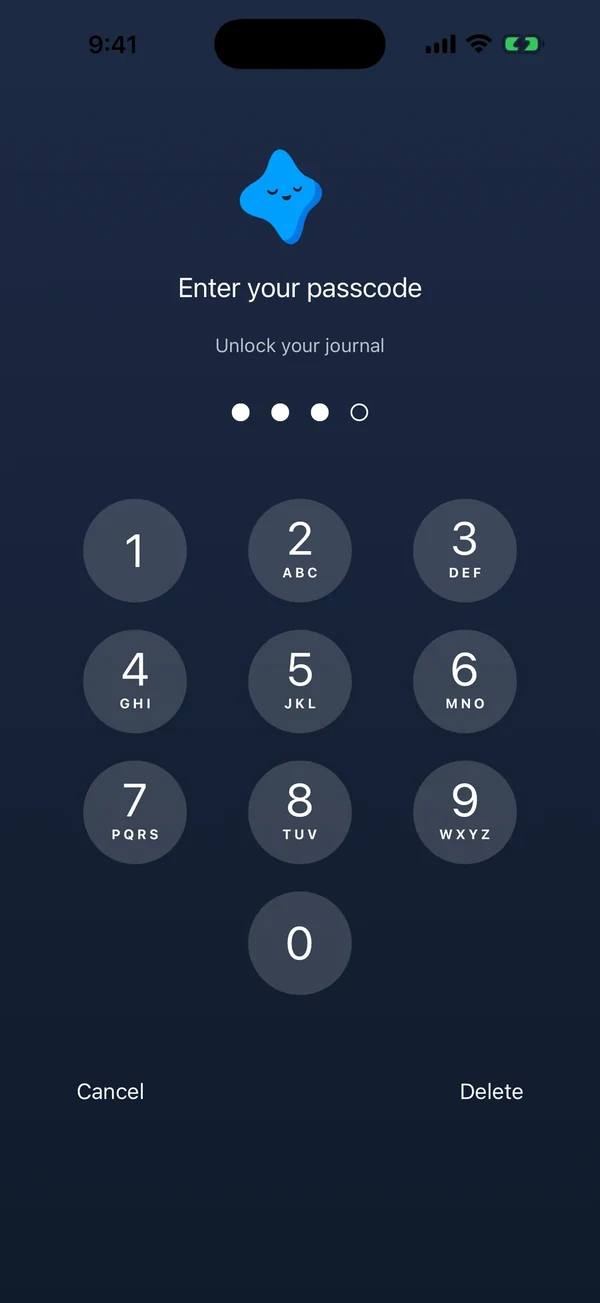
| App lock | Someone has your phone, already open | A passcode lock, with Pro |
| Export your words | You can leave with everything | Plain text and backup file, free |
To be fair, an account isn’t automatically worse. It can mean your journal follows you to a new phone or a laptop.
Yumemira doesn’t do that. It’s a real trade, and only you can weigh it.
And one footnote on our own row. If you use the optional goal pictures in Pro, the short description you approve leaves your iPhone to make the picture. Nothing else does.
Whatever app you pick, two of the six checks live in the iPhone’s own settings. Both are free.
How to lock a journal app on iPhone
On iOS 18 and later, the iPhone can lock a journal app you downloaded. The app doesn’t have to support it.
Apple’s guide to locking or hiding an app (opens in a new tab) gives the steps.
Find the app.
On the Home Screen, touch and hold the journal app’s icon until the menu opens.
Turn on the lock.
Tap Require Face ID (or Touch ID or Passcode), then tap it again to confirm.
Test it once.
Quit the app and tap it again. It should ask for your face, finger or passcode.
Per Apple, a locked app keeps its information out of places like search and notification previews.
The lock stays on that one iPhone and doesn’t sync with iCloud, so a new phone means adding it to the setup list, somewhere between the Wi-Fi password and the wallpaper.
There’s one catch.
It’s the sister problem from the top. The iPhone’s lock accepts your phone’s passcode, so anyone who knows that code can open the app too. That leaves two fixes:
- Change your phone’s passcode, which is free
- Use an app lock with its own code
| iPhone app lock | Yumemira app lock | |
|---|---|---|
| Cost | Free, part of iOS | Part of Pro |
| Code it takes | Your phone’s passcode | A 4-digit code you set in the app |
| Where you turn it on | Home Screen, touch and hold | Settings › Privacy and lock |
| Works for | A downloaded app you choose | Yumemira, Notes included |
If you’re on Yumemira Free and nobody knows your phone’s code, the iPhone’s lock does the job.
Lock the app before you write the first secret.
Hide your journal from the Lock Screen and widgets
This is leak number two. It’s the sneaky one, because nobody has to touch your phone.
A reminder that quotes your journal can sit on a lit-up screen while you’re across the room, waiting for a microwave that beeps long after the soup is done.
On the iPhone, the fix is called Show Previews. Apple’s guide to notification settings (opens in a new tab) puts it under Settings › Notifications.
Pick Never, or the middle option, which waits until your face or passcode opens the phone. Each app can also get its own setting, under its name in the same list.
Inside Yumemira, the switch is Hide text in notifications and widgets, under Settings › Privacy and lock. It’s free.
Turn off previews first. It protects every app at once.
Widgets sit on screens people walk past, too. If you use one, a journal widget for iPhone shows what each kind displays.
Backups without giving up privacy
A journal on one phone has one weak spot. It’s the phone.
Phones fall in sinks and go through the wash in jacket pockets.
So keep one copy somewhere else.
In Yumemira, Settings › Backup › Save a backup makes one file with your journal and notes. You choose where it goes, like Files or a computer.
If your iPhone’s iCloud Backup is on, it includes your journal too.
There’s no copying between devices, so a new phone gets your words from one of those backups, through Add from a backup or the iPhone’s own restore.
Settings › Export data also gives you plain text, free. That’s the checklist’s last row: one file that opens anywhere, with every word in it.
For the screen-by-screen version, see journal app export and backups.
Test a secret diary app before you trust it
A five-minute test beats a store page full of promises. Run it with a line nobody could care about.
Before your first real entry
Ticks stay in this browser. Nothing is sent.
Test with bananas before you write the real thing.
On the six checks from the table, Yumemira passes five on Free, and its own lock comes with Pro. If that suits you,  try it in Yumemira.
Or run the same five minutes on the app already on your phone.
But privacy is only one reason to pick an app. Whether you actually like opening it at the end of a long day, with one eye already closed, matters at least as much.
- For the wider picture: the best journaling app for iPhone
- For paper habits: how to keep a diary private
- For what ours does: the iPhone journal page
Tonight, turn off notification previews from bed. That fixes leak number two.
Leak number one can wait until breakfast, and so can your sister.
Questions people ask
Is the journal app on iPhone private?
It depends on the app. Check where entries are stored, whether you need an account, whether it shows ads, and whether it can hide text and lock. On iOS 18 or later, the iPhone itself can lock a journal app you downloaded.
Can I lock a journal app on iPhone?
Yes. On iOS 18 or later, touch and hold the app on the Home Screen, then tap Require Face ID (or Touch ID or Passcode). Anyone who knows your phone’s passcode can still open it, so some apps add a separate code.
What is the most private way to journal on a phone?
Use an app that keeps entries on the phone, with no account and no ads. Lock the app and turn off notification previews. Then keep one backup somewhere only you open.
Is a journal app with no account safer?
It means fewer places your words live, since nothing sits in an online account that someone could sign in to. The trade-off is that your journal won’t follow you to a new device by itself, so backups matter more.
Sources
TopicJournal apps
You earned the Good Picker badge
You read all six checks. Tonight, turn off notification previews from bed.
0 XP

Yumemira is an iPhone app (iOS 18 or later).
More about the daily journalYumemira is free to start. iPhone, iOS 18 or later.