
Journal on iPhone
Journal widget for iPhone: keep today’s step on your Lock Screen

The short answer
A journal widget for iPhone puts today’s step where you already look: the Home Screen or the Lock Screen. Touch and hold the screen, tap Edit or Customize, then add the widget. Pick one small step, glance at it at a time you already stop, and keep it that small for a week.
In 30 seconds
- Home Screen: touch and hold, tap Edit, then Add Widget.
- Lock Screen: touch and hold it, then tap Customize and Add Widgets.
- A Live Activity keeps a running step on the Lock Screen.
- One switch can hide the words from anyone holding your phone.
A notebook in a drawer waits until you remember it. Your Lock Screen doesn’t wait at all.
So put the one thing you care about where your thumb already goes. We make an iPhone app with widgets, so we’re not neutral here. A sticky note on the mirror works too.

Reading XP0 XP
Why a widget helps you remember
An app gets opened when you remember it. A widget skips that part.
The reminder sits on a screen you were going to look at anyway. Think of it as a sticky note that updates itself: it shows today’s step, then changes once the step is done.
Put the reminder on a screen you already check.
Two spots work well for one:
- The bottom row of your first Home Screen page, where a thumb lands without trying
- The Lock Screen, next to the clock you check all day
The weather widget has held the best spot on your Home Screen for years, reporting rain you could have seen for yourself through the window beside the bed. It can share.
And if you haven’t picked where to write yet, how to journal on your iPhone compares the usual ways.
How to add a journal widget to your iPhone Home Screen
It’s five taps, the same for any app. These follow Apple’s own widget guide (opens in a new tab), in plain words.
Touch and hold.
Press an empty spot on the Home Screen until the apps jiggle.
Tap Edit.
It’s in the top-left corner.
Tap Add Widget.
Find your journal app in the list.
Pick a size.
Swipe through the sizes, then tap Add Widget again.
Tap Done.
First drag the widget to the spot your thumb reaches first.
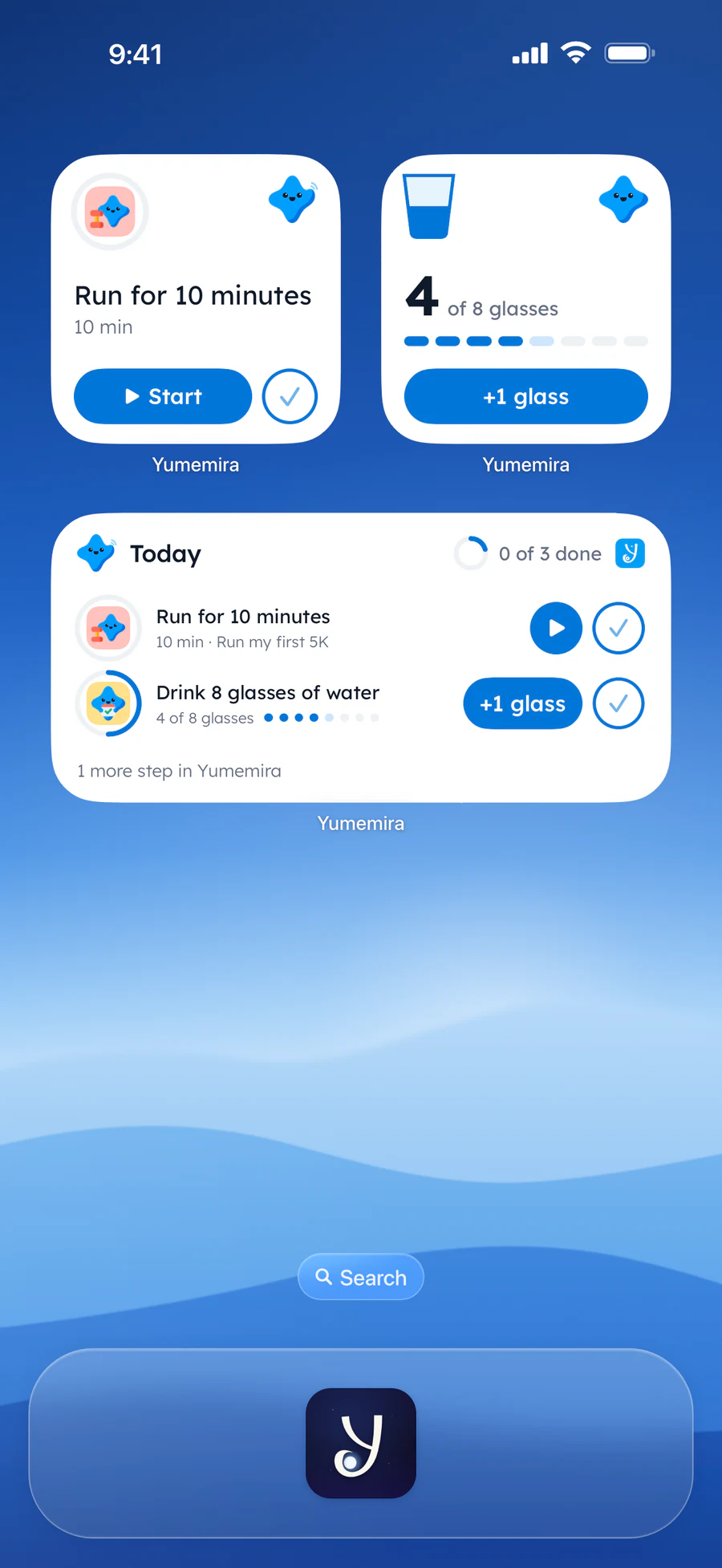
Each small widget above holds one step. The medium one holds a short list, with a Start button or a +1 glass button beside each step.
How to add a widget to your Lock Screen
The Lock Screen has much less room. Its widgets sit near the clock, so the step has to be short.
Wake the phone.
Touch and hold the Lock Screen until the Customize button shows, then tap it.
Tap Add Widgets.
A list of apps slides up.
Choose a widget.
Tap it, or drag it into the space near the clock.
Tap Done.
Swipe the list down first, then tap Done.
Now the step is there before you’ve even typed your passcode.
Say you pick up the phone at the bus stop to check the time, and “Read 10 pages” is sitting right under the clock while the bus takes its time.
Too much text for that little space? Make the step shorter.
“Read 10 pages” fits. “Finally finish the novel my cousin lent me two summers ago” does not, and the novel knows it.
Live Activities keep a running step on your Lock Screen
A Live Activity is an update that stays on the Lock Screen while something is happening, like directions or a food delivery. Apple’s Lock Screen guide (opens in a new tab) lists those examples.
This is where a step works better than a line. Most of the lines worth keeping are about something you did, so the app starts with the doing.
In Yumemira, the small-steps journal for iPhone, a step you start comes with you to the Lock Screen.
Tap Start.
Do it on today’s step, in the app or right on the widget.
Lock the phone.
The step stays on the Lock Screen, and in the Dynamic Island on iPhones that have one.
Tap Done.
It’s right there, beside Pause and a +1 button for counted steps like water.
Back in the app, Mira cheers “Nice. That counts.” Then Say how it went asks one question: “How did it go?”
It’s hard to have nothing to say about something you did ten minutes ago.
On paper, the same trick works without a screen. Do one small thing, then write a line about it. The back of a receipt will do.
But if nothing shows up on your Lock Screen, open Settings › Apps, tap the app, then tap Live Activities. Apple notes that not every app has that setting.
What each surface shows
Every row below is free, with one exception. Three goals and your week on the large widget come with Pro.
| Surface | What it shows | Free or Pro | How to add |
|---|---|---|---|
| Small or medium Home Screen widget | Today’s step, with Start or +1 glass | Free | Home Screen, Edit, Add Widget |
| Large Home Screen widget | Your goal; with Pro, 3 goals and your week | Free with 1 goal | Home Screen, Edit, Add Widget |
| Lock Screen widget | Today’s step, near the clock | Free | Lock Screen, Customize, Add Widgets |
| Live Activity | A running step with Pause, +1 and Done | Free | Tap Start on today’s step |
| Hide text switch | “Your step” in place of the words | Free | Settings, Privacy and lock |
Start with one surface. One Home Screen widget will do for a first week.
So add the Lock Screen later, once you know which step you actually want to see all day.
Keep it private on the Lock Screen
Anyone who picks up your phone can read the Lock Screen, including the friend who only asked to check the time and the cousin still waiting for that novel.
“Walk 20 minutes” is fine for anyone to see. A goal you’d rather keep to yourself is another matter.
If a stranger shouldn’t read it, hide the text.
Hiding the words covers one worry. The other is losing your lines along with the phone.
For that one, here’s how to back up a journal on iPhone.
A widget is a reminder, not a rule
Some days you’ll see the step at the bus stop, in the kitchen and again in bed with the light already off, and do it zero times. It happens.
The widget doesn’t keep score. There’s no streak to lose, and tomorrow it shows tomorrow’s step.
And on a hard day, let it sit there. You don’t owe the widget an explanation, or the journal.
When the step starts to feel like a chore
Move the widget to your second Home Screen page for a week. Bring it back when you miss it.
But keep writing the line. The line matters more than where the widget sits, and how to journal every day has a version for busy weeks.
Tomorrow, before the drawer or the notebook, your thumb finds today’s step.
Questions people ask
How do I add a journal widget to my iPhone?
Touch and hold an empty spot on the Home Screen until the apps jiggle, then tap Edit and Add Widget. Find your journal app, choose a size, tap Add Widget again, place it and tap Done.
Can I put a widget on my iPhone Lock Screen?
Yes. Touch and hold the Lock Screen until Customize appears, tap it, then tap Add Widgets. Choose a widget, swipe the list down and tap Done. Lock Screen widgets are small, so short steps fit best.
Is there a daily goals widget for iPhone?
Yes, some goal and journal apps include one. In Yumemira, the small and medium widgets show today’s step for your goal, with a Start or +1 glass button, and they’re free.
Are Yumemira’s widgets free?
Yes. The small, medium and Lock Screen widgets are free, and so is the Live Activity. The large widget works free with one goal. Pro adds three goals and your week on it.
Can I hide my journal text on the Lock Screen?
In Yumemira, yes. Open Settings, then Privacy and lock, and turn on Hide text in notifications and widgets. Your widgets then show “Your step” instead of the words of your goal.
Why doesn’t my step show on the Lock Screen?
Check that Live Activities are on for the app: Settings, then Apps, then the app, then Live Activities. In Yumemira, the step appears there after you tap Start on it.
Sources
TopicJournal apps

You earned the Thumb Reach badge
You read the whole guide. Now put one small step where your thumb lands first.
0 XP

Yumemira is an iPhone app (iOS 18 or later).
Yumemira on iPhone: Lock Screen and widgetsYumemira is free to start. iPhone, iOS 18 or later.