
Journal backup
How to Back Up a Journal on Your iPhone So Nothing Gets Lost

The short answer
To back up a journal on your iPhone, make a backup copy that lives somewhere other than the phone. Turn on iCloud Backup in Settings, and save your journal app’s own backup file to iCloud Drive or a computer. For a paper journal, photograph or scan each full page. Then open the copy once to check it worked.
In 30 seconds
- A backup is a second copy that lives somewhere else.
- iCloud Backup copies your whole iPhone to Apple’s servers.
- Save your journal’s own file too, and keep it off the phone.
- Open the copy once, before the day you need it.
Say your phone slides off the edge of the sink while you rinse a mug, and lands face down in soapy water next to a fork.
Your first thought isn’t the photos. It’s three years of lines about buses and soup.
Apple says don’t put a wet iPhone in rice (opens in a new tab). So the rice stays in the cupboard, and you wait.

Reading XP0 XP
Where your journal actually lives
You can’t back something up until you know where it is. A journal usually sits in one of three places:
- A notebook, wherever you last left it
- A phone app that keeps entries on the phone
- A company’s server, behind an account you sign in to
Each app’s help page says which one it uses, and it’s worth the minute it takes to check before the day your phone goes swimming with the dishes.
Every copy should live somewhere the original doesn’t. A second notebook in the same drawer won’t help if the drawer floods.
And a copy on the same phone won’t help if the phone goes in the sink.
If you’re still choosing where to write, how to journal on your iPhone weighs the main options. Yumemira is ours, so weigh that; a notebook counts too.
How to back up a paper journal
Paper rarely falls into sinks. It has other enemies, like a tea mug with bad aim, a leaky water bottle in a bag and a house move where one box never turns up.
The fix is a photo of every full page.
Photograph each page.
Daylight, flat on a table, the whole page in the frame. Do the full notebook once, then new pages each week.
Or scan in Files.
In the Files app, tap the More button, then Scan Documents. Tap Keep Scan, then Save.
Save copies elsewhere.
A folder in iCloud Drive or on a computer, named with the notebook’s dates.
Apple’s steps for scanning a document with Files (opens in a new tab) show each screen. A scan saves the notebook as one file.
That’s tidier than 140 loose photos between your lunch and a screenshot of a bus timetable.
How to back up your iPhone with iCloud
For everything on a phone, the usual second copy is iCloud Backup. It copies the whole iPhone to Apple’s servers.
Apple’s steps to back up an iPhone with iCloud (opens in a new tab) are short:
- Open Settings and tap your name.
- Tap iCloud, then iCloud Backup.
- Turn on Back Up This iPhone.
- Tap Back Up Now for a copy right away.
That’s the whole setup.
After that, it runs by itself when the iPhone is charging, locked and on Wi-Fi. Usually that means the middle of the night, with the charger cable resting at the one angle where it works.
So most of the job is one switch. Look at the date under Back Up Now each month.
How to back up your journal in Yumemira
If you write in Yumemira, the small-steps goal journal for iPhone, your journal stays on the phone with no account to sign in to, so the backup is in your hands.
Your iPhone’s iCloud Backup includes your journal when it is on. And one tap in Settings saves your journal and notes as a file you keep.
Open Settings › Backup.
The date of your last backup sits at the top.
Tap Save a backup.
One file holds your journal (notes, goals, photos, progress) and your Notes with their files.
Pick where it goes.
iCloud Drive, a computer, or a message to yourself. Not On My iPhone alone.
Add it back later.
On a new iPhone, open Settings › Backup and tap Add from a backup.
Add from a backup keeps what’s already there, so an old file won’t wipe a fresh install. The same steps are on our help page.
The file itself is small and dull. That’s what you want from a backup.
Check that your iPhone journal backup worked
A backup you’ve never opened is only a guess.
The check takes about 2 minutes, and it’s the easiest bit of peace you’ll find on a phone that also holds your bus pass, your photos and your shopping list.
So do it now.
Open the copy once, before you need it.
| Where entries live | How to back up | How to check |
|---|---|---|
| A paper notebook | Photograph or scan each full page | Zoom in and read one line |
| Your whole iPhone | Settings, your name, iCloud, iCloud Backup | The date under Back Up Now |
| Yumemira | Settings › Backup › Save a backup | The Last backup date, and the file in Files |
| A text export | Settings › Export data › Plain text | Open it and find your newest line |
| A journal PDF (Pro) | Share › PDF | Open it and scroll to the last page |
The only full test of a restore is a second iPhone. Without one, check the date and open the file.
But do it again now and then, say on the first of the month.
Your 2-minute backup check
Ticks stay in this browser. Nothing is sent.
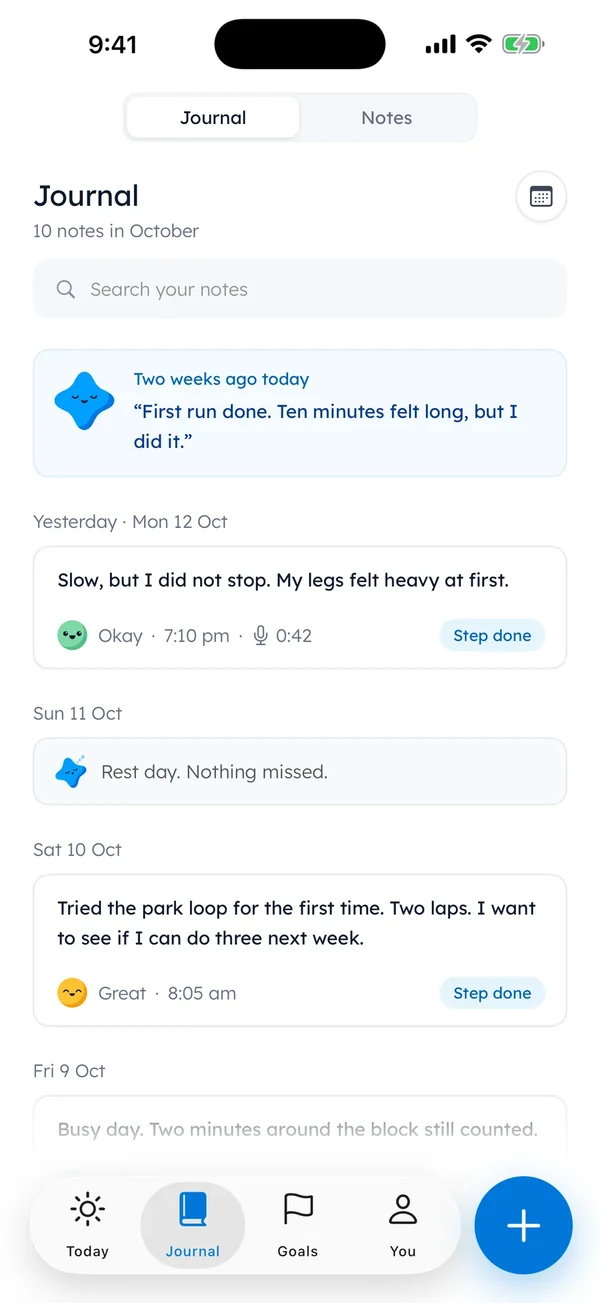
If your copy ends on the same line as the Journal tab, it worked. Nothing else to do.
How to export your journal to read elsewhere
A backup is for putting things back. An export is for reading them somewhere else, like a laptop at the kitchen table or a printed page tucked into a box of old birthday cards.
In Yumemira, open Settings › Export data and pick Plain text or Backup file. Plain text lets you choose the dates, and whether to add your steps and moods to your notes.
The file is made on your iPhone, and you choose where it goes.
As far as we can tell, plain text is the copy most likely to open on any computer next March, long after every app on your phone has moved its buttons twice.
Plain lasts.
Keep your journal private and backed up
A backup is a second copy of your most private writing. So guard it like the notebook: a folder only you open, never a shared family drive.
The phone needs the same care. A passcode, a locked app and hidden notification text cover most of how to keep a diary private.
If you add a journal widget for iPhone, Yumemira’s Hide text switch keeps the words off the Home Screen and Lock Screen. Our privacy page lists what stays on your iPhone.
Do it while the phone is still dry.
Questions people ask
How do I back up my journal on my iPhone?
Turn on iCloud Backup in Settings, then save your journal app’s own backup file to iCloud Drive or a computer. In Yumemira, open Settings › Backup and tap Save a backup. Open the copy once to check it.
Does iCloud Backup include my journal?
For Yumemira, yes. Your iPhone’s iCloud Backup includes your journal when it is on, and restoring the whole iPhone brings it back. Other apps differ, so check each app’s help page.
Can I export my journal?
Yes. In Yumemira, Settings › Export data makes a plain text file or a backup file for free, and you choose where it goes. With Pro, you can also export as a PDF or a picture.
What happens if I change or lose my iPhone?
Yumemira doesn’t copy entries between devices by itself. Restore the new iPhone from its iCloud Backup, or open Settings › Backup on it and tap Add from a backup with a file you saved earlier.
Can I recover a deleted entry?
Often, yes. In Yumemira, deleted notes wait in Recently deleted for 30 days. Open it and tap Put back. Deleted goals wait there too, though a goal may need a free goal slot before it comes back. After 30 days they clear by themselves.
Sources
TopicJournal apps

You earned the Small Step badge
You read to the end. Make one copy and open it once.
0 XP

Yumemira is an iPhone app (iOS 18 or later).
Journal help: backups and privacyYumemira is free to start. iPhone, iOS 18 or later.