
iPhone settings
What is Journaling Suggestions on iPhone? A plain guide
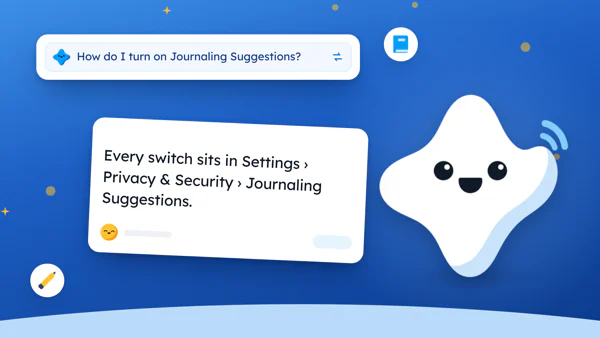
The short answer
Journaling Suggestions is an iPhone feature that groups moments from your day, like a workout, a song, a photo or a place you went, and offers them as ideas to write about. The sorting happens on the iPhone, and an app gets a moment only after you pick it. The switches are in Settings › Privacy & Security.
In 30 seconds
- It suggests moments to write about, built from data already on your iPhone.
- Only you see a suggestion until you add it to an app.
- Every switch sits in Settings › Privacy & Security › Journaling Suggestions.
- A 2024 rumor said it gave strangers your name and location. It didn’t.
In February 2024, a Facebook post told iPhone owners to find a switch called Discoverable by Others and turn it off.
It claimed the switch showed strangers your name and location.
Snopes rated that false (opens in a new tab). But the post did send people to a settings page worth reading.
We make a journal that doesn’t use this feature, so we’re not neutral.

Reading XP0 XP
What is Journaling Suggestions on iPhone?
Journaling Suggestions arrived with iOS 17.2 in December 2023, the same day as Apple’s own journal app (Apple Newsroom (opens in a new tab)).
It isn’t an app you open. It’s a picker: a set of cards that a journaling app can show when you start a new entry.
Each card is a moment your iPhone grouped together, for example:
- A morning run, with its route
- An album you played three times in a row
- The photos from a birthday dinner
Pick one, and the app starts an entry with that moment at the top. Skip them all, and nothing happens.
Apple says the grouping uses on-device processing. So the sorting happens on the phone in your hand.
If you’re still choosing where to write at all, how to journal on your iPhone compares the options.
What can it suggest from?
Apple’s privacy page (opens in a new tab) lists six kinds of information the feature can draw on, all of it already stored on your iPhone:
- Workouts: the type, how long, the route, calories and heart rate
- Media: the songs and podcasts you played
- Contacts: who you texted, called or FaceTimed
- Photos: your library, memories, shared albums, and people and pets you’ve named
- Significant Locations: places you’ve been, and how often
- State of mind: moods you’ve logged on the phone
Apple says it uses limited history from the phone to build each suggestion. When Snopes checked the settings on iOS 17.2, five of these categories were on by default.
None of it leaves the phone to build a card, and the results get oddly specific.
So a phone that only saw your listening history might propose a heartfelt journal entry about the podcast you fell asleep to on the bus.
Any category you don’t want, you can switch off alone.
Who can see your suggestions?
Before you share one, only you can see it, Apple says. The cards live on your iPhone, not inside an app.
But if you use iCloud, Apple’s privacy page says the suggestions also sync to your iPad. They’re encrypted on the way and in storage. With two-factor authentication and a passcode, Apple says even it can’t read them.
To stop that sync, go to Settings › your name › iCloud › See All › Journaling Suggestions.
An app that shows the picker doesn’t get the whole list. Apple’s notes for app makers (opens in a new tab) say an app can’t read a moment’s details until you pick it, and then it gets “high-level details” only.
To see which apps have this access, look for Apps Using Private Access on the same settings page.
What Discoverable by Others did
What did that Facebook switch do? In Apple’s older wording, quoted by Snopes, Discoverable by Others let other people’s iPhones count you as a nearby contact, so their suggestions could rank moments with people they know.
Your name and location weren’t shared, only the count.
Counting your own nearby contacts was a separate switch back then. On Apple’s current privacy page both directions sit under one switch, Prioritize Moments with Contacts (we couldn’t check every iOS version).
Nothing reaches an app until you tap a card.
How to turn off Journaling Suggestions on iPhone
Every switch lives on one page, under Privacy & Security in Settings. Here’s what each one does.
| Setting on screen | What it does | Change it if |
|---|---|---|
| “Turn Off All” | Stops suggestions in every journaling app | You never use them |
| A category, like “Photos” | Leaves that kind of moment out | One kind feels too personal |
| “Clear History” | Clears suggestions you haven’t shared | You want the list to start fresh |
| “Prioritize Moments with Contacts” | Uses a Bluetooth count of nearby contacts | You’d rather not be counted |
| “Notifications” | Sends prompts to write about a moment | The prompts feel like too much |
| “Apps Using Private Access” | Lists apps that can show the picker | You want to check who has access |
| “Sync from this iPhone” | Picks the iPhone that syncs suggestions to your iPad | You’ve switched to a new iPhone |
To switch the whole feature off:
Open Settings.
It’s the grey gear icon.
Tap Privacy & Security.
Then scroll down to Journaling Suggestions.
Turn Off All.
Tap it. That stops suggestions for every journaling app on the phone.
One category.
Or tap a category, like Photos, and leave the rest on.
A journal that starts from something you did
Some nights a phone that remembers the week is handy. Other nights the line should come from you alone.
Yumemira, the small-steps journal for iPhone, doesn’t use Journaling Suggestions at all. We checked our own code. Your journal stays on your iPhone with no account, and our privacy page lists what stays there.
It’s easier to write about something you did ten minutes ago than about something your phone noticed last week. So the app asks for one small step toward a goal first, then one line about it.
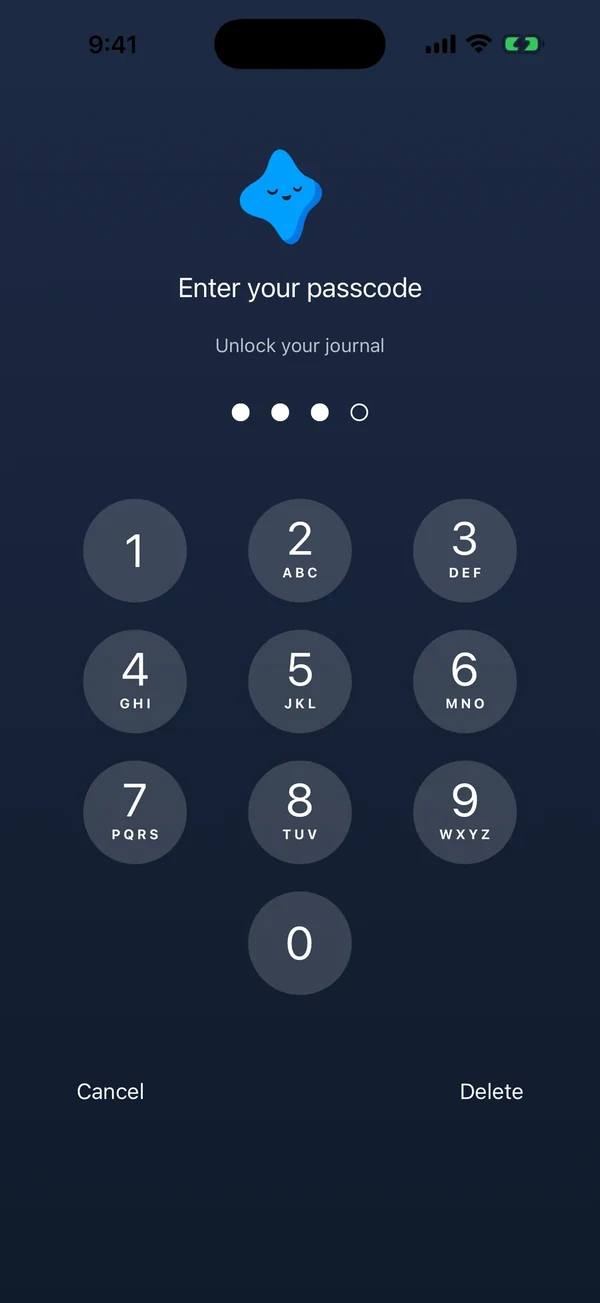
Mark the step done, and a Say how it went button opens a space for the line. So the words come from the thing you just finished.
If you’d rather keep it on paper, a sticky note on the kettle does the same job.
Do one small thing, then write a line about it.
If your step shows on the Lock Screen, the switch called Hide text in Settings › Privacy and lock keeps your words off it. There’s more in journal widgets for iPhone.
Either way, the words in your journal are the ones you picked. For the rest of the privacy picture, see how to keep a journal private.
Keep it on or turn it off?
There’s no wrong answer. It’s a settings page, not a test.
Keep it on if a song or a run reminds you of something worth a line. Turn it off if you don’t use a journaling app, or if the cards feel like someone reading over your shoulder.
Most of the time the answer sits in between, which is what the single switches are for. Want the ideas but not the pings? Turn off Notifications and keep the rest.
The 2024 post told everyone to find one switch and flip it in a hurry. Tonight, in bed, open Settings › Privacy & Security › Journaling Suggestions and read the list once, slowly.
Keep what’s useful. Switch off anything that doesn’t feel like yours.
Questions people ask
Where is Journaling Suggestions on iPhone?
Open Settings, tap Privacy & Security, then scroll down to Journaling Suggestions. Every switch for the feature is on that one page, including the categories, Clear History, Notifications and Turn Off All.
How do I turn on Journaling Suggestions?
Apple says the categories are switched on and off on the Journaling Suggestions page, in Settings › Privacy & Security, and your choice applies to every journaling app. We didn’t test turning it back on after Turn Off All on a device, and labels can differ by iOS version.
What does Discoverable by Others do on iPhone?
In Apple’s older wording, quoted by Snopes, it let other people’s iPhones count you as a nearby contact for their suggestions. Names and locations weren’t shared. Apple’s current page puts this under Prioritize Moments with Contacts.
Is Journaling Suggestions safe to leave on?
That’s your call. Apple says suggestions are built on the iPhone, only you see them until you share one, and an app gets only high-level details of a moment you pick. If any category feels too personal, switch that one off.
Does Journaling Suggestions share my location?
Not with people nearby. Apple says names and locations aren’t shared with your contacts; their phones only count how many contacts are near. Places can show up in your own suggestions if Significant Locations is on, and you can switch that off.
Does Yumemira use Journaling Suggestions?
No. Yumemira doesn’t show the suggestions picker. Your journal stays on your iPhone with no account, and each line starts from a small step you took or a question from Mira.
Sources
- Journaling Suggestions & Privacy (opens in a new tab)
- Journaling Suggestions (framework documentation) (opens in a new tab)
- Apple launches Journal app, a new app for reflecting on everyday moments (opens in a new tab)
- Do an iPhone's 'Journaling Suggestions' Settings Reveal Your Name and Location to Strangers? (opens in a new tab)
TopicJournal apps
You earned the Settings Reader badge
You read the whole guide. Now open that settings page and read it once.
0 XP

Yumemira is an iPhone app (iOS 18 or later).
More about the daily journalYumemira is free to start. iPhone, iOS 18 or later.